


Update 01/22/2026: Signal introduces Pinned messages
Pinned messages for Signal are getting closer. We’ve received a sneak preview and were able to test the feature on Android, and can now share the first screenshots.
Signal previously confirmed that pinned messages are currently being developed for Android, iOS, and Desktop.
With pinned messages, you can display a message at the top of the chat for all participants. This works in both 1:1 chats and groups.
By pinning important messages, you can prevent them from getting lost among other messages. This is useful for appointments, reminders, announcements, or group rules.
The feature is still in development, so the final design may change.
How pinned messages work in Signal
To pin a message, press and hold a message until the context menu with various options appears. Here you’ll find the new option Pin message:
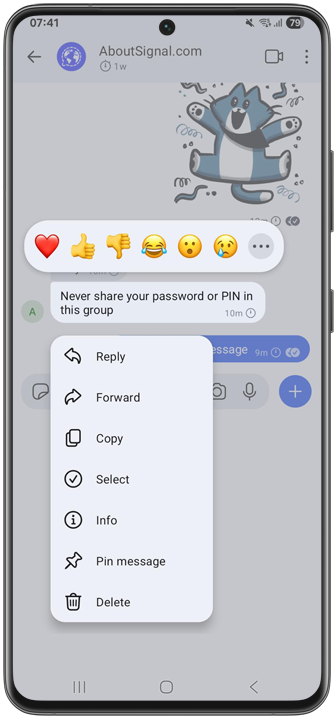
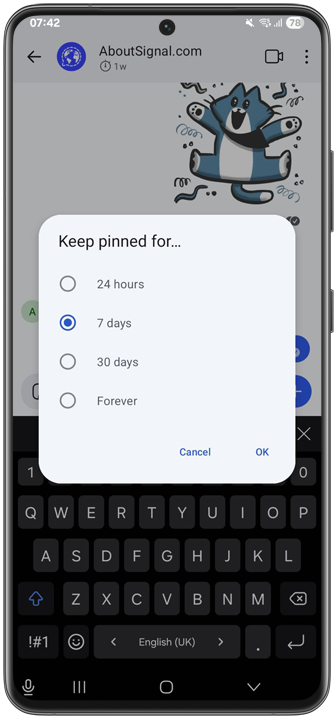
You will then see a pop-up where you can choose how long you want to pin the message.
You can choose 24 hours, 7 days, 30 days, or forever. If you choose forever, you can of course unpin the message manually at any time:
The pinned message will then appear in a banner at the top of the Signal chat:
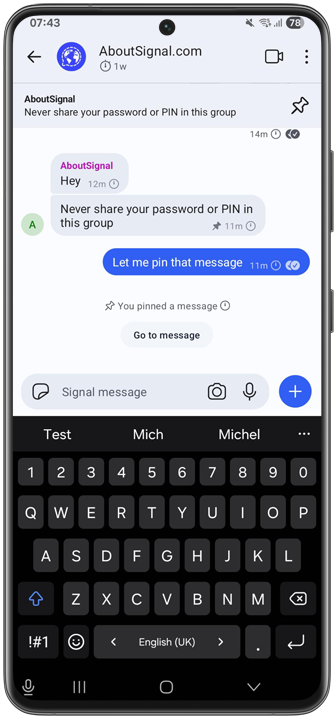
In the chat, you can recognize pinned messages by the small pushpin icon next to the timestamp.
Options for pinned messages
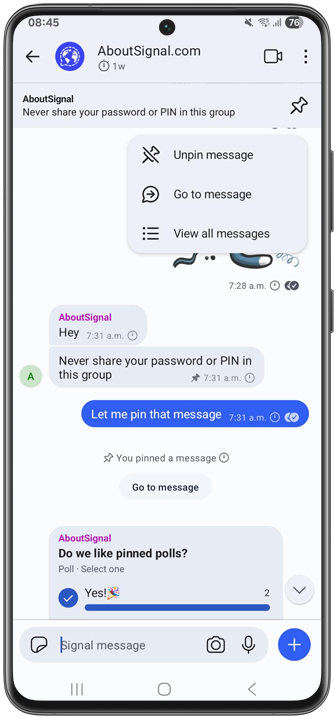
At the top of the screen, you can tap the pushpin icon to unpin a message, jump to the message in the chat, or view all pinned messages:
Overview of pinned messages
The overview of all pinned messages looks like this:
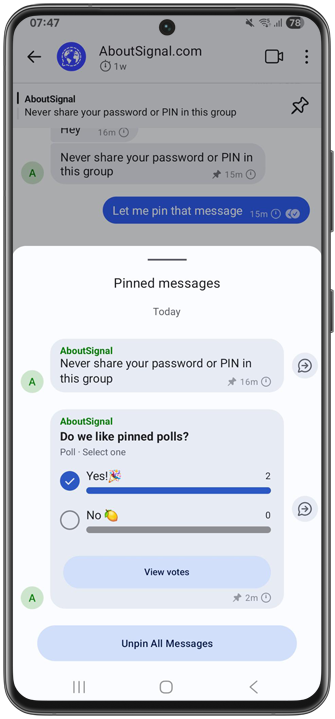
By tapping the arrow next to a pinned message in this overview, you jump to the corresponding message in the chat.
Maximum of three pinned messages
In the current version, you can pin up to three messages at the same time. If you try to pin a fourth, you’ll receive a notification that it will unpin and replace the oldest pinned message. Since this is an early version, this number may still be subject to change.
All types of messages, including polls
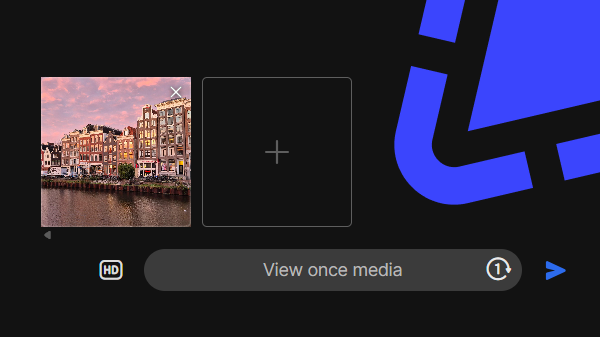
In Signal, you can pin all types of messages: text messages, images, videos, polls, locations, stickers, voice messages, GIFs, view-once media, and files.
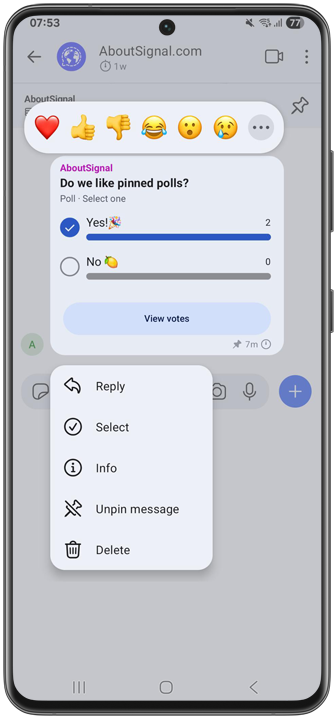
This is what a pinned poll looks like:
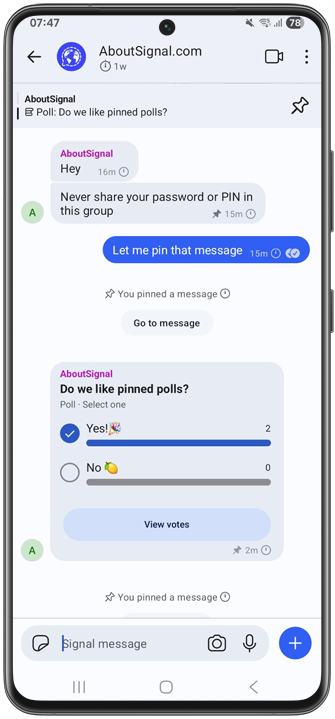
This is what a pinned voice message looks like:
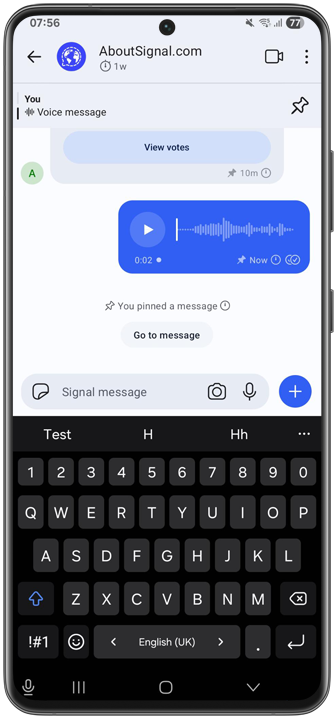
And this is what a pinned image looks like:
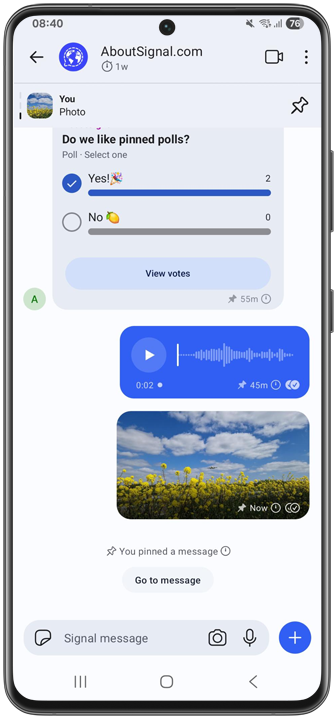
Disappearing messages
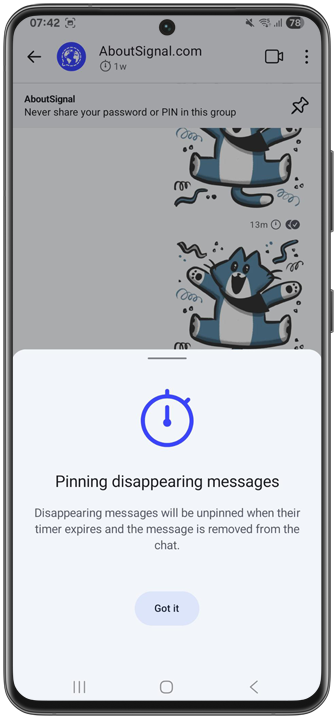
If you have disappearing messages enabled for your chat, Signal will notify you. Disappearing messages are automatically unpinned and removed from the chat when the timer expires:
Unpinning messages
You can unpin messages at any time. You can do this by pressing and holding a pinned message in the chat and selecting Unpin message, or by tapping the pushpin icon in the banner at the top.
If you have multiple pinned messages, you can also unpin them all at once using the button at the bottom of the pinned messages overview:
Coming soon
As mentioned, the feature is still under development and the final design may differ from these screenshots, but the foundation for pinned messages has been laid.
The feature is now well developed for Android, iOS, and Desktop. It’s still unknown when pinned messages will be available. With the upcoming holidays in mind, we expect the release early next year. As soon as there’s more news, you’ll of course read about it on AboutSignal.com and our social media channels Bluesky or Mastodon.
 English
  Deutsch
  Italiano