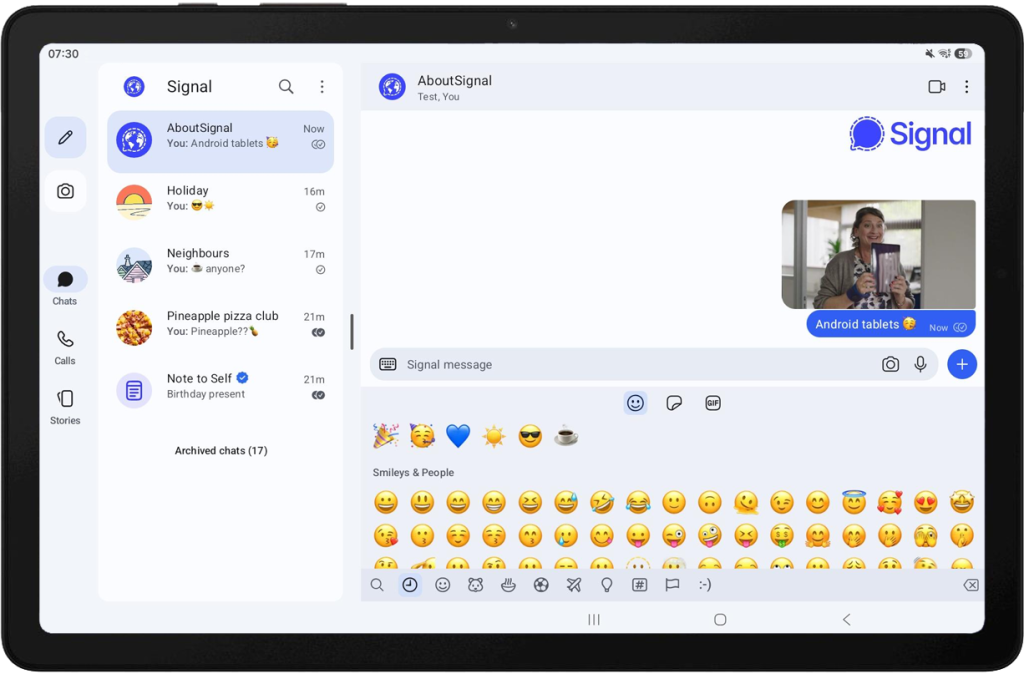
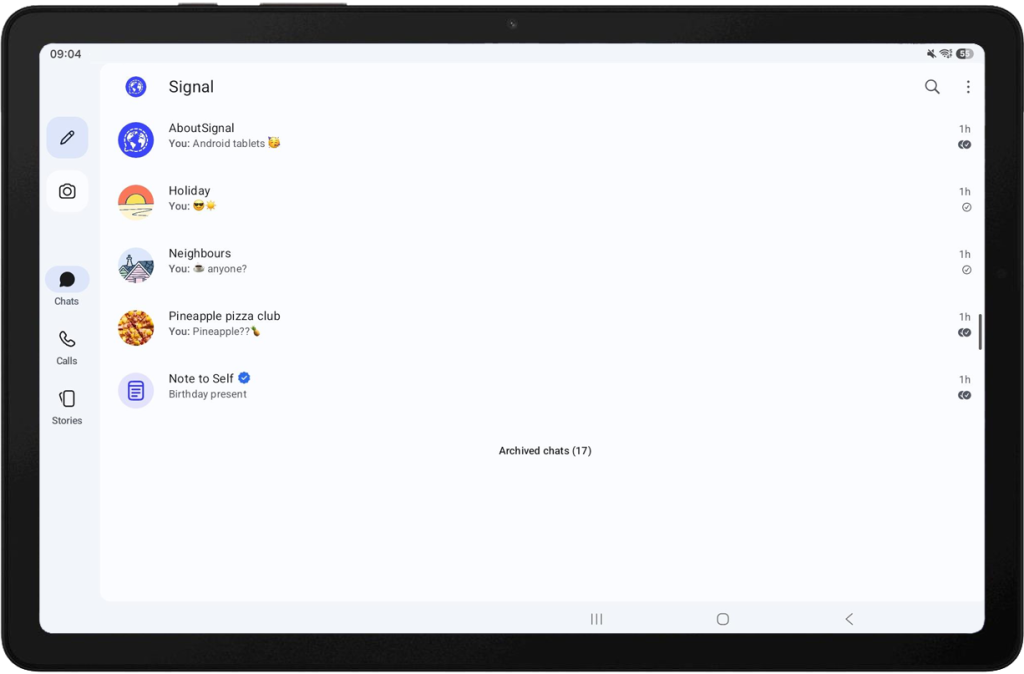
Signal has introduced support for linked Android tablets in the latest beta version. Users with Android tablets from brands such as Samsung, Lenovo, Huawei, and Xiaomi can now use Signal on a tablet either as a standalone device or as a linked device.
Until now, Signal’s tablet support was limited to iPads. Android tablets were not officially supported. August last year, we found the primi suggerimenti del supporto ai tablet Android nel codice sorgente, and in November we received a sneak preview and shared the first screenshots of the app running on an Android tablet.
Now, Android tablet support is officially available to beta testers and will soon be available to everyone.
Users can set up Signal on a tablet as a standalone device or link it to an existing Signal account on another device. By linking your Android tablet to your phone, your chats and messages are synchronized across devices, allowing you to access your conversations from both devices.
How to set up Signal on an Android tablet as a linked device?
Once tablet support is available on Google Play follow the steps below:
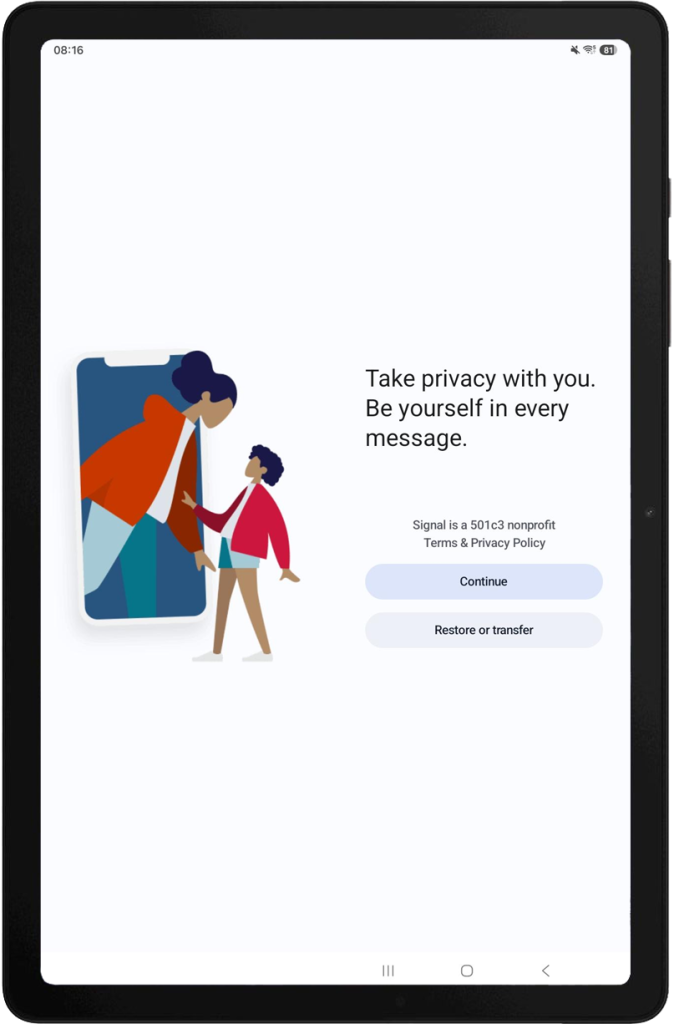
First, install Signal from the Google Play Store on your Android tablet. On the welcome screen, tap Continue. You can also choose to restore or transfer your account from another device:
Allow permissions (or tap Not now) for notifications, contacts, and phone calls. On the next screen, you can register your Android tablet as a standalone device by entering and verifying your phone number, or you can tap the three-dot menu and select Link device.
Note: According to a developer on the Signal Community Forum, this step is still subject to change, and we’ll update this post accordingly once the change has been implemented. For now, beta testers can use it this way.
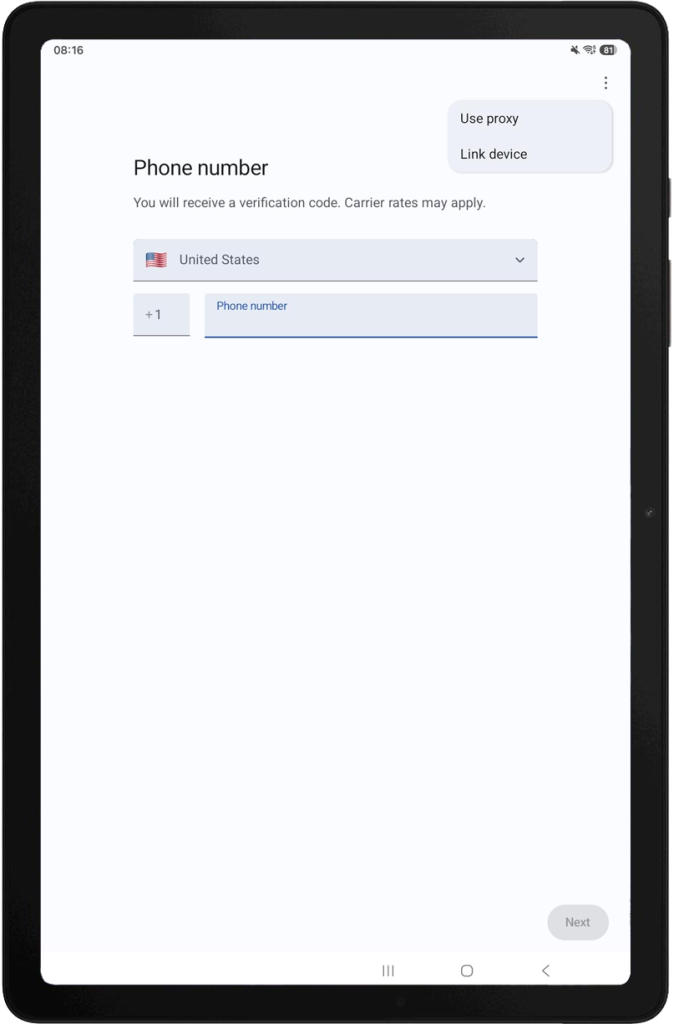
Follow the registration steps to register the Android tablet as a standalone device and complete the profile setup.
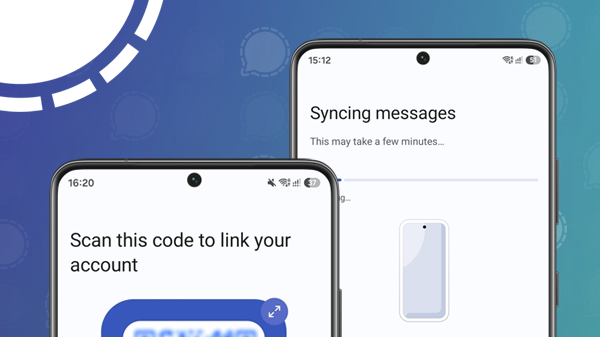
If you choose to link a device you’ll be presented with a QR code. Open Signal on your phone, go to Settings > Linked devices > Link new device, and scan the QR code displayed on the Android tablet with your phone:
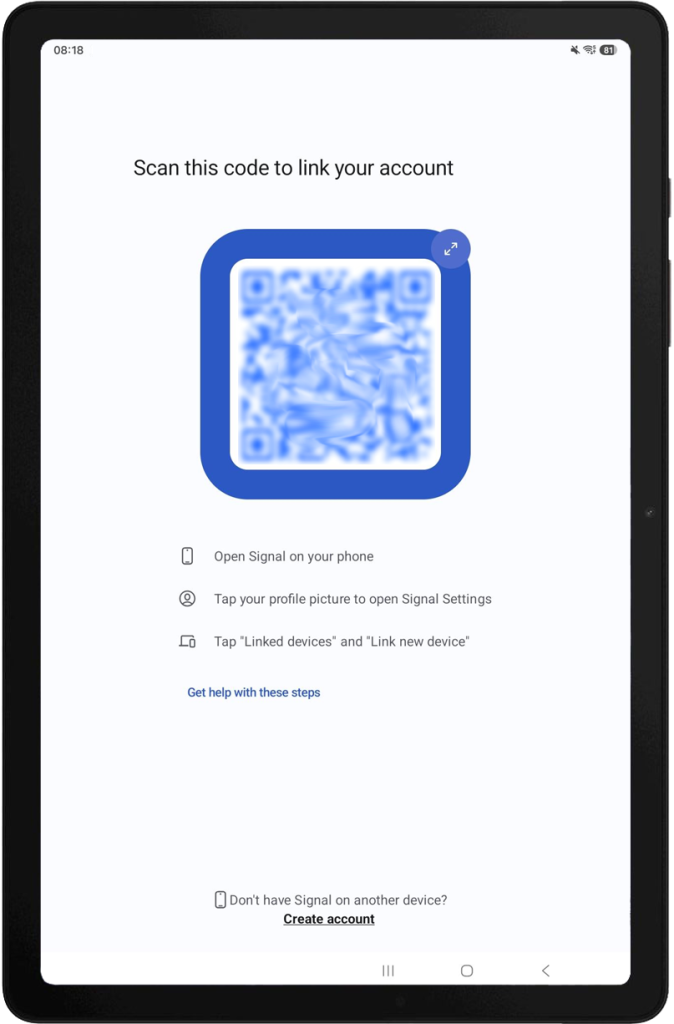
In Signal on your phone, you can choose whether to link the device with or without transferring your message history. We choose to transfer our message history. Signal will then link the device:
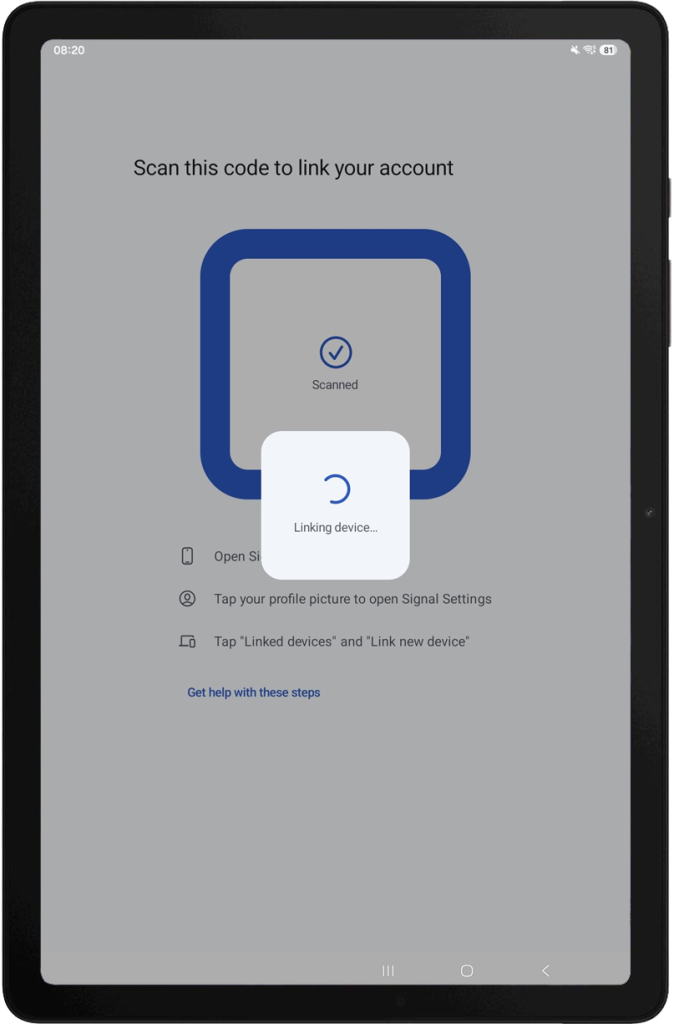
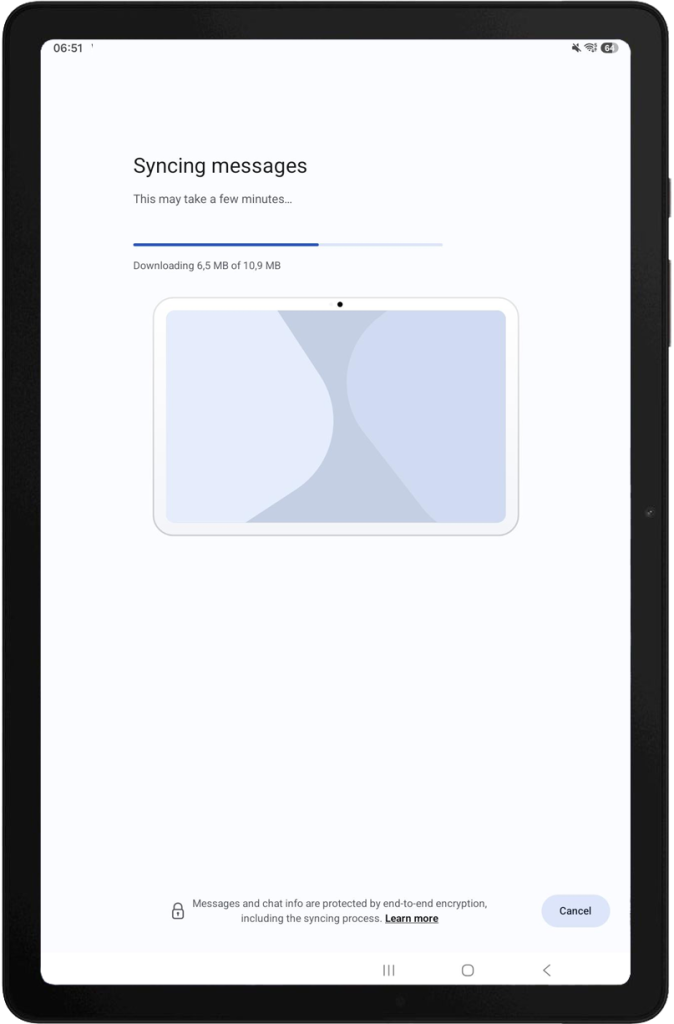
After the devices have been linked, your messages will be synced. This may take a few minutes. As with everything in Signal, your messages and chat information are protected by end-to-end encryption, including the syncing process.
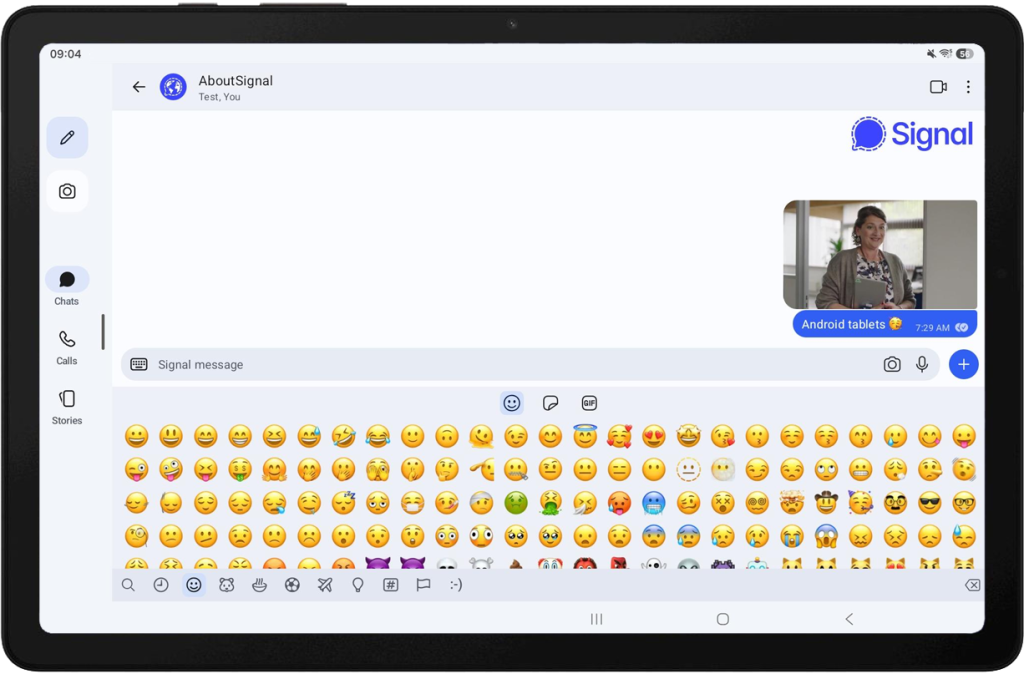
Signal is now successfully setup as a linked device, and your chats and messages are synchronized across devices.
Customizable layout with split-screen
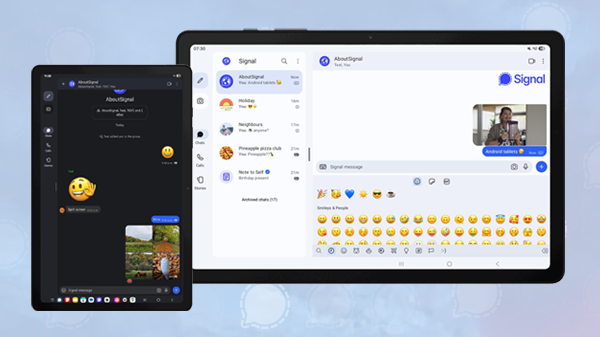
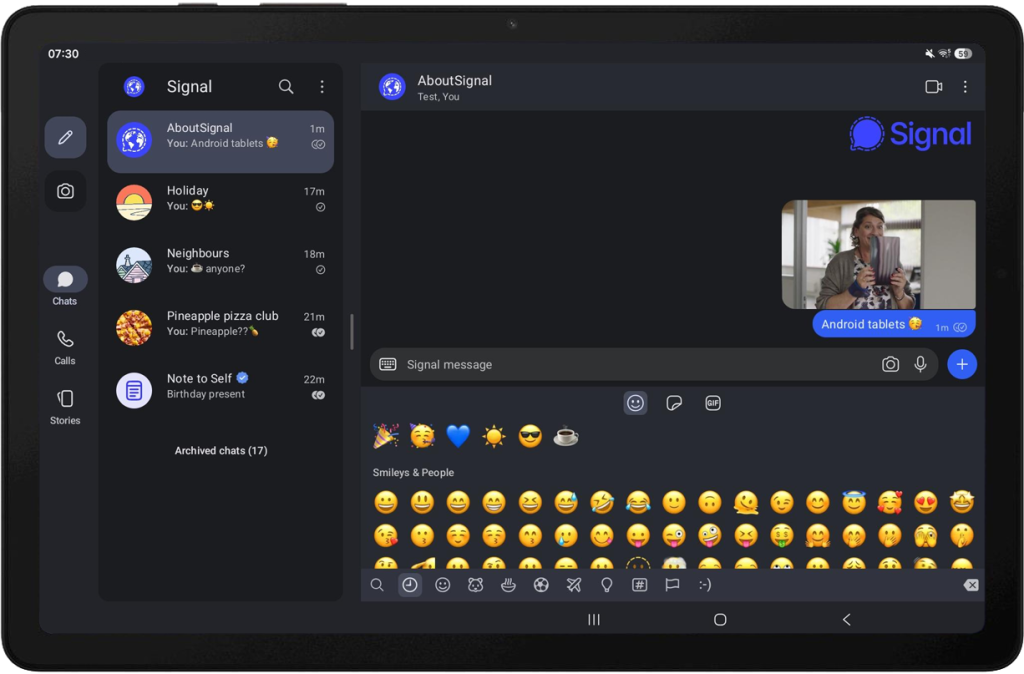
Signal has designed an entirely new user interface with a split-screen view. The split-screen view works best in landscape mode. Whether this view is available when using a tablet in portrait mode depends on the available screen width and height. You can try adjusting your Android settings, such as font size and screen zoom, to make split-screen available in portrait mode as well.
In split-screen view, you’ll see your chat list on the left side of the screen, and your current chat on the right:
Scorrendo con il dito è possibile regolare il layout dello schermo. È possibile scegliere di visualizzare solo la chat facendo scorrere la barra centrale verso sinistra.
Se preferisci l'elenco delle chat a tutto schermo allora puoi scorrere a destra.
Disponibilità
Signal’s Android tablet support is now available in Signal for Android beta version 8.20. After the beta testing period, it will roll out to all users through Google Play on compatible Android tablets.
Resta informato
Vuoi rimanere aggiornato sulle ultime novità Signal notizie, suggerimenti e aggiornamenti? Seguici su Threads, Bluesky o Mastodon.