Last updated: September 29, 2026 (availability updated)
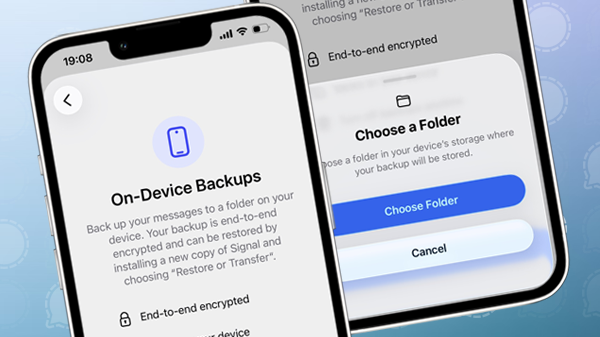
Signal has introduced on-device backups for iPhones and iPads. The local backups are cross-platform, meaning they use the same format as the existing on-device backups on Desktop and Android.
Until now, iOS users could only use Signal Secure Backups to back up their messages and media, and did not have the option to create local backups. The new on-device backups allow users to securely store a copy of their Signal data locally and restore it when needed.
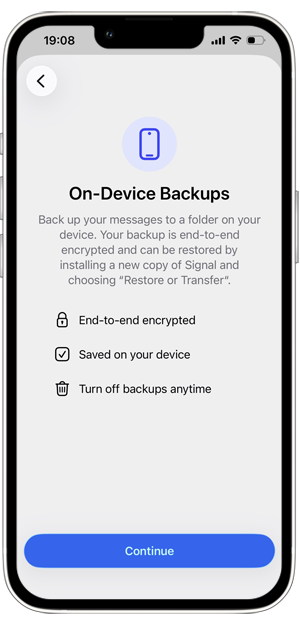
The on-device backups are stored as a folder containing multiple files and are fully end-to-end encrypted.
Media files are backed up incrementally, meaning only changed files are saved again. Duplicate files are automatically removed to keep backups efficient and reduce storage usage.
With support for local backups, Signal now offers multiple backup options for iOS. Users can choose between local backups, free Signal Secure Backups (all text messages + 45 days of media), and paid Signal Secure Backups (all messages + all media up to 100 GB).
One recovery key for on-device backups and Signal Secure Backups
On-device backups are protected by a 64-character recovery key. This is the same key used for the optional Signal Secure Backups feature, meaning users only need to keep track of one recovery key to restore their backups.
Without the recovery key, a backup cannot be restored. It is therefore important to keep this key safe and never share it with anyone.
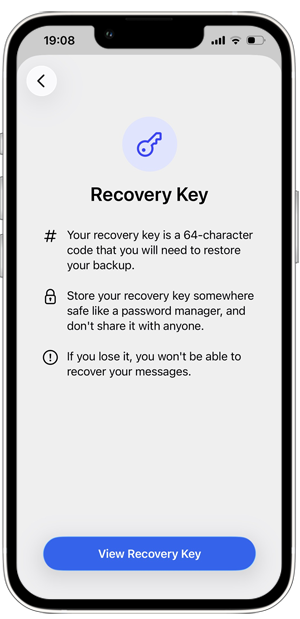
How to enable on-device backups
All types of backups are optional, so users can choose whether to enable a backup option and which method they prefer.
To enable on-device backups, go to Signal Settings > Backups:
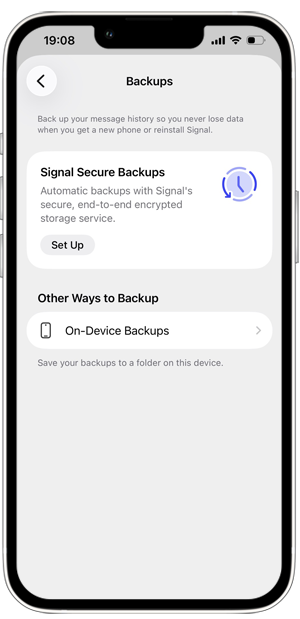
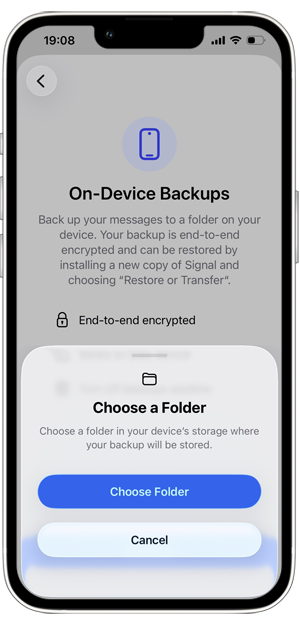
Tap On-device backups > Turn on backups. Choose a folder for storing your backup and be sure to save your recovery key.
If you prefer, you can also select a folder on iCloud Drive to store your backup.
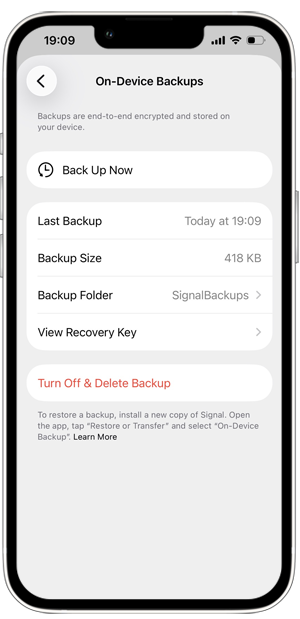
After choosing a folder, you can create a backup and see backup details:
How to restore on-device backups
If you have enabled and created a Signal on-device backup, you can restore a backup on iOS or Android by reinstalling Signal and selecting “Restore or transfer account”, and then choosing “Restore on-device backup”. It’s currently not possible to restore an on-device backup on Desktop, but you can manually transfer your Desktop backup to your phone and restore it there.
To restore an on-device backup from Android or Desktop on your iPhone or iPad, you first need to move the backup folder to the internal storage of your iOS device.
Availability
iOS on-device backups are available for iPhone and iPad in Signal version 8.30 and later. You can create on-device backups on both primary and linked devices.
On-device backups were already supported on Android and Desktop and can now also be restored on an iOS device.
Stay Informed
Want to stay up to date with the latest Signal news, tips, and updates? Follow us on Bluesky or Mastodon.